A clearer menu.
A more useful booking message.
Start with a visual example, check the details, then adapt the copy to your restaurant. These ten tools turn menu and reservation design ideas into editable working text.
All restaurant details, prices, maps and interface states in these original educational concepts are illustrative. Replace placeholders with verified information. These examples do not run a booking system, confirm a reservation or submit guest details.
Published 18 October 2026 · Plain-text templates are free to download. Editing and copying happen in your browser; nothing is submitted by these tools. Downloads contain the original starting text.
Choose a tool
Restaurant communication checklists
Palette & Purpose · Ten fictional educational examples. Adapt each checklist to your restaurant’s actual information and process.
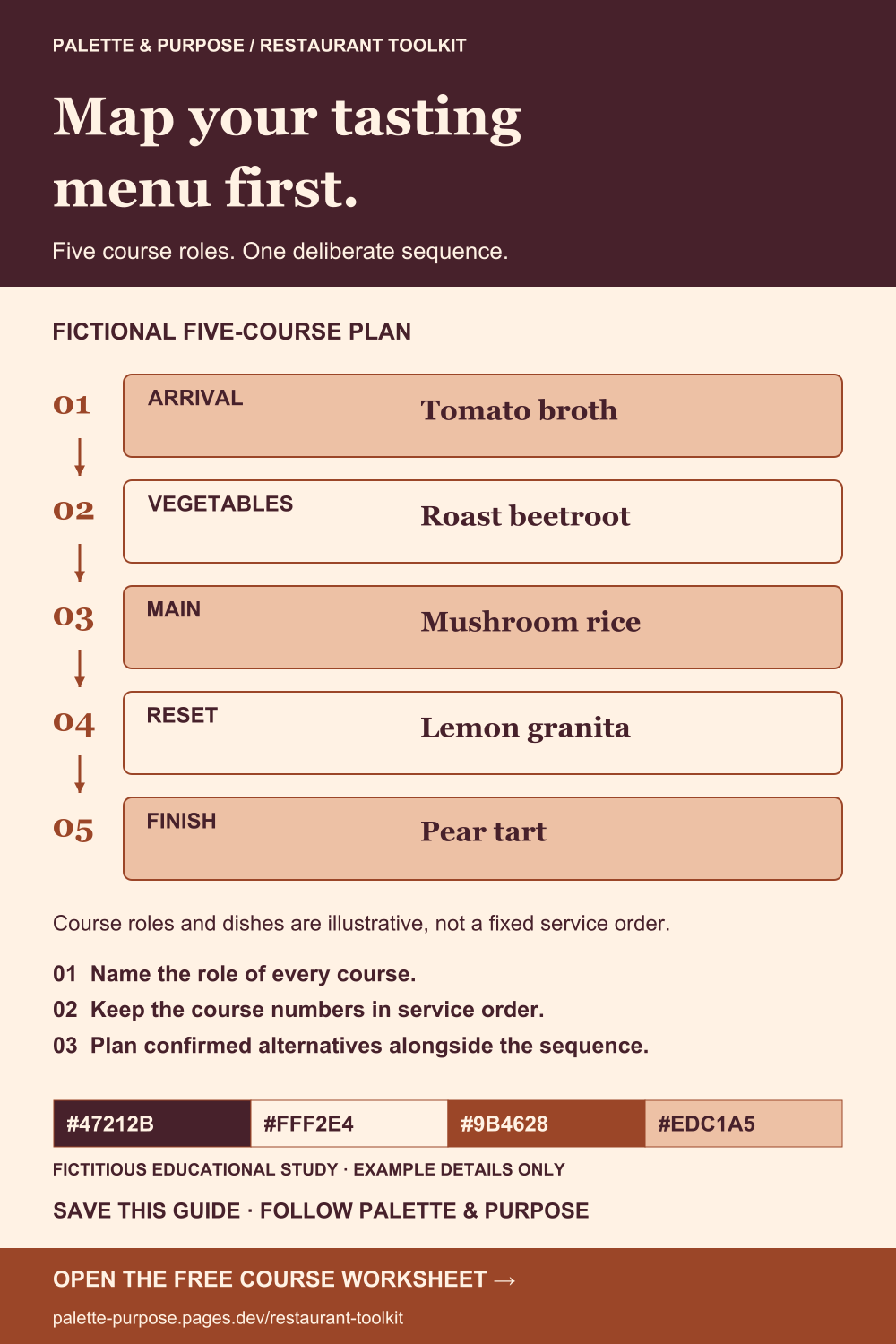
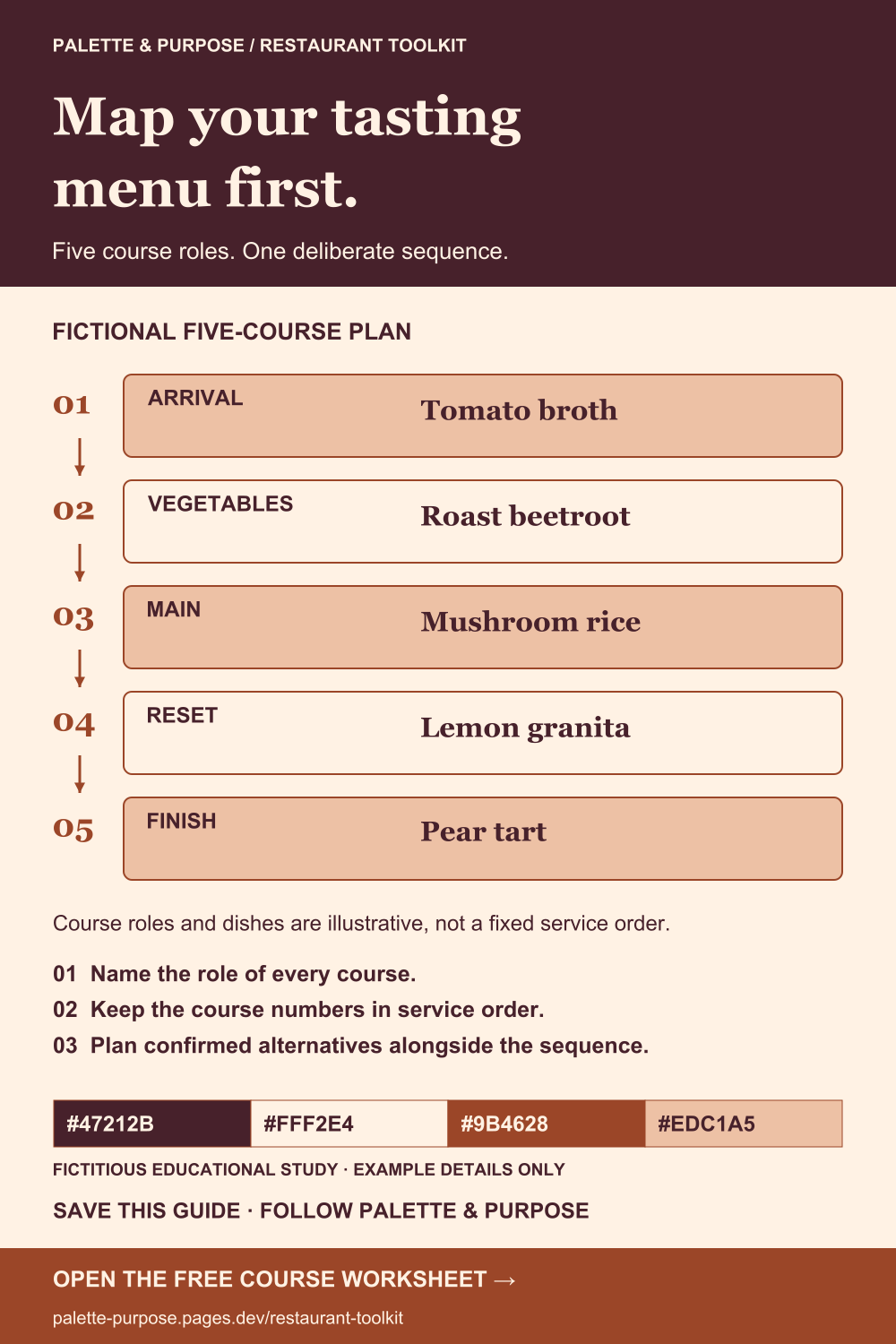
Map a tasting menu before styling it
Start with a plain course map that the kitchen and design team can review together. Give each course a role, a dish name and a place in the service order. Keep confirmed alternatives and service notes in the working worksheet so a decorative layout does not hide missing information. The five-course sequence is fictional; your menu may use a different number or order of courses.
Download the course-planning worksheet (.txt)
Before you use it
- Confirm the actual course count and service order.
- Pair every course with a concise role and guest-facing dish name.
- Record confirmed alternatives separately from the default sequence.
- Have the team review changes before the final menu is typeset.
Palette & Purpose · restaurant-toolkit#tasting-menu · Illustrative guidance: adapt to your venue’s actual process.
Example note. The five course roles and dishes are fictitious planning examples, not a service standard or a real restaurant menu.
Back to the ten tools ↑View the visual example
Show exactly when each menu is served
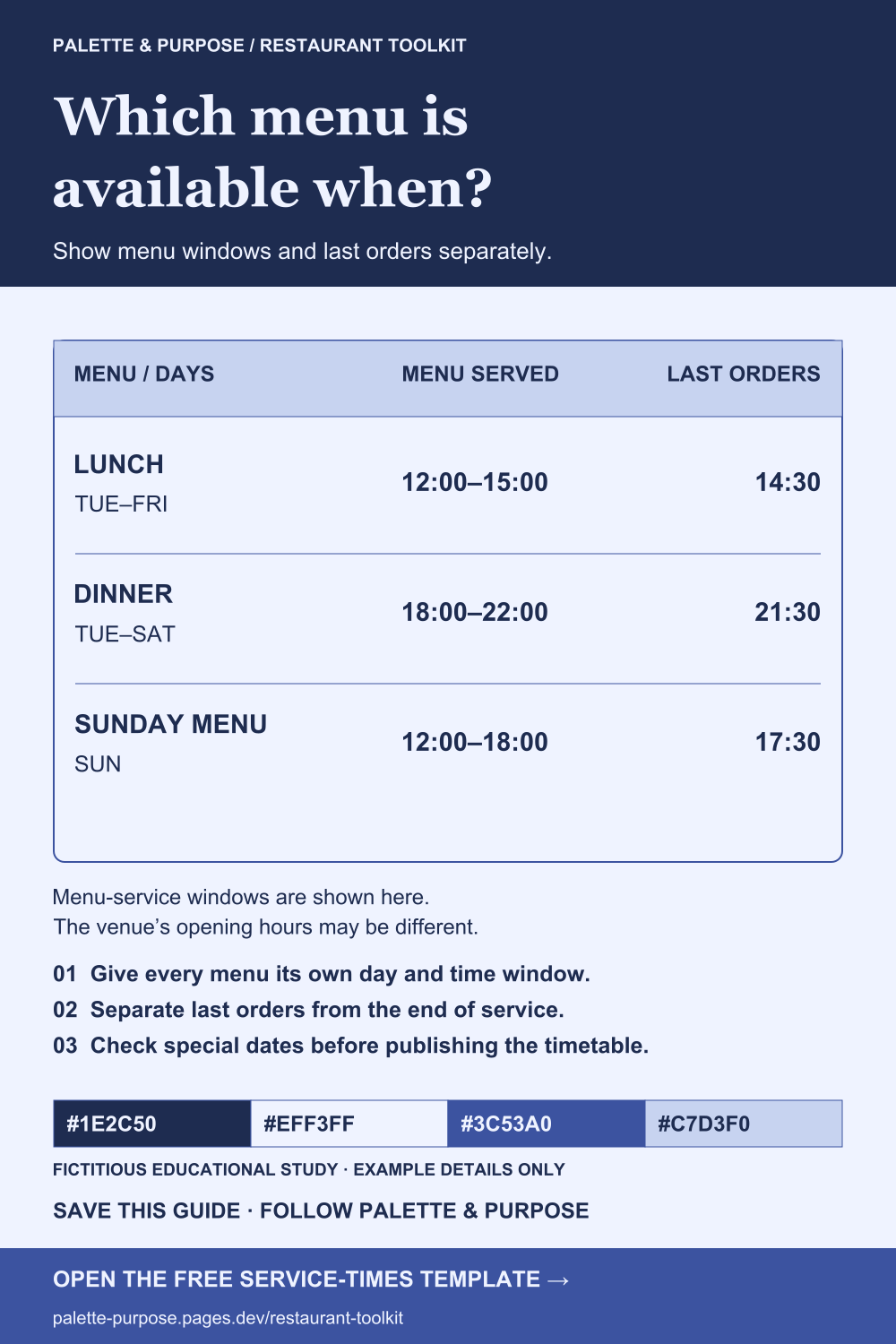
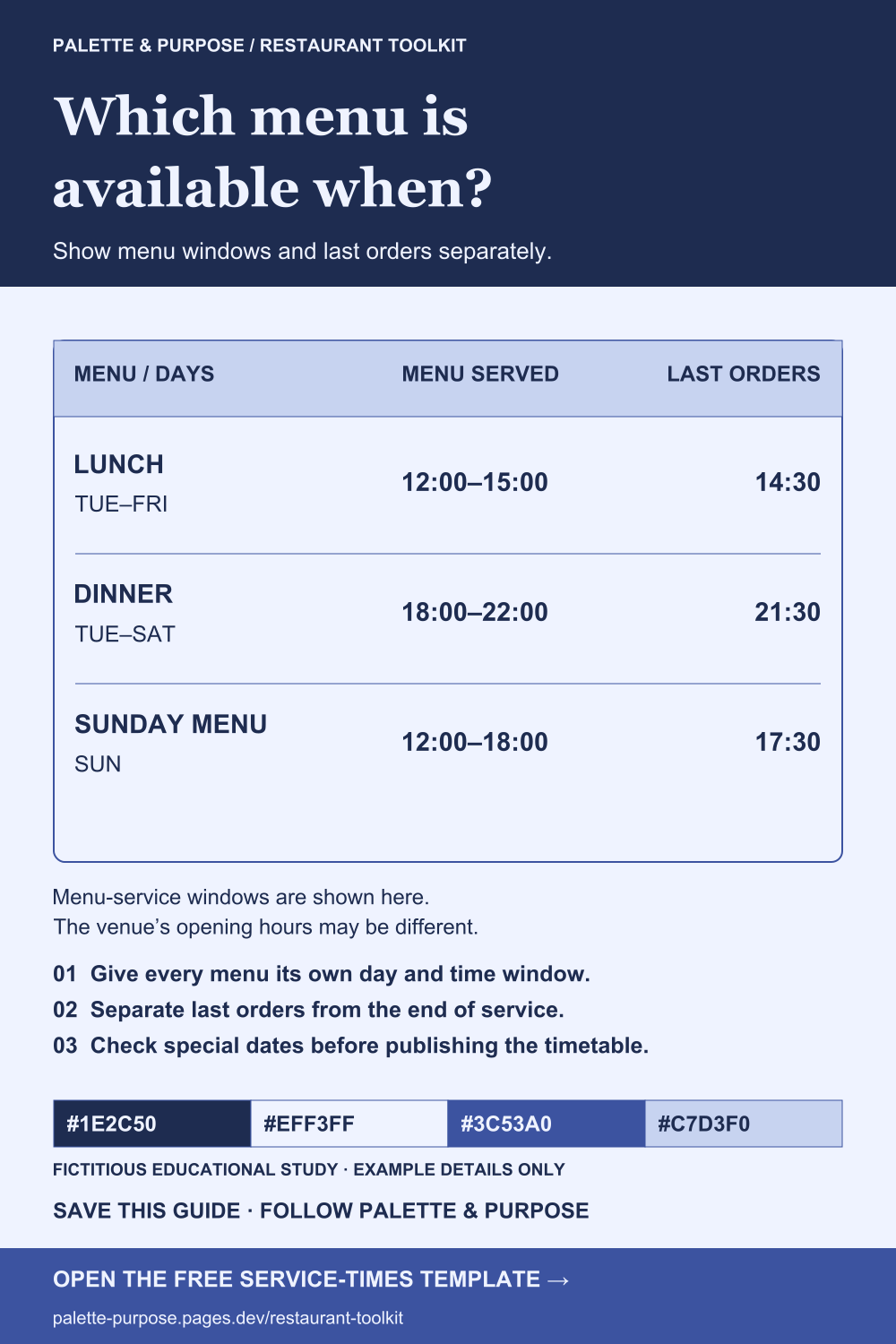
A venue can be open while a particular menu is unavailable. Keep opening hours, menu service windows and last-order times as separate fields. Build one confirmed schedule before copying it onto menus, reservation pages and social posts. The timetable in the visual is invented; replace every day, cutoff and special-date exception with confirmed venue information.
Download the service-times copy template (.txt)
Edits stay in this page and are not sent to us. The download contains the original template.
Before you use it
- Confirm the days attached to each menu, including Sunday or holiday exceptions.
- Distinguish opening hours from a specific menu’s service window.
- Label last orders separately when the cutoff differs from service end.
- Check that the menu, website and booking confirmation agree.
Palette & Purpose · restaurant-toolkit#service-times · Illustrative guidance: adapt to your venue’s actual process.
Example note. All days and times are invented. The example distinguishes menu availability from last orders; it does not describe an operating venue.
Back to the ten tools ↑View the visual example
Compare set-menu options on the same basis
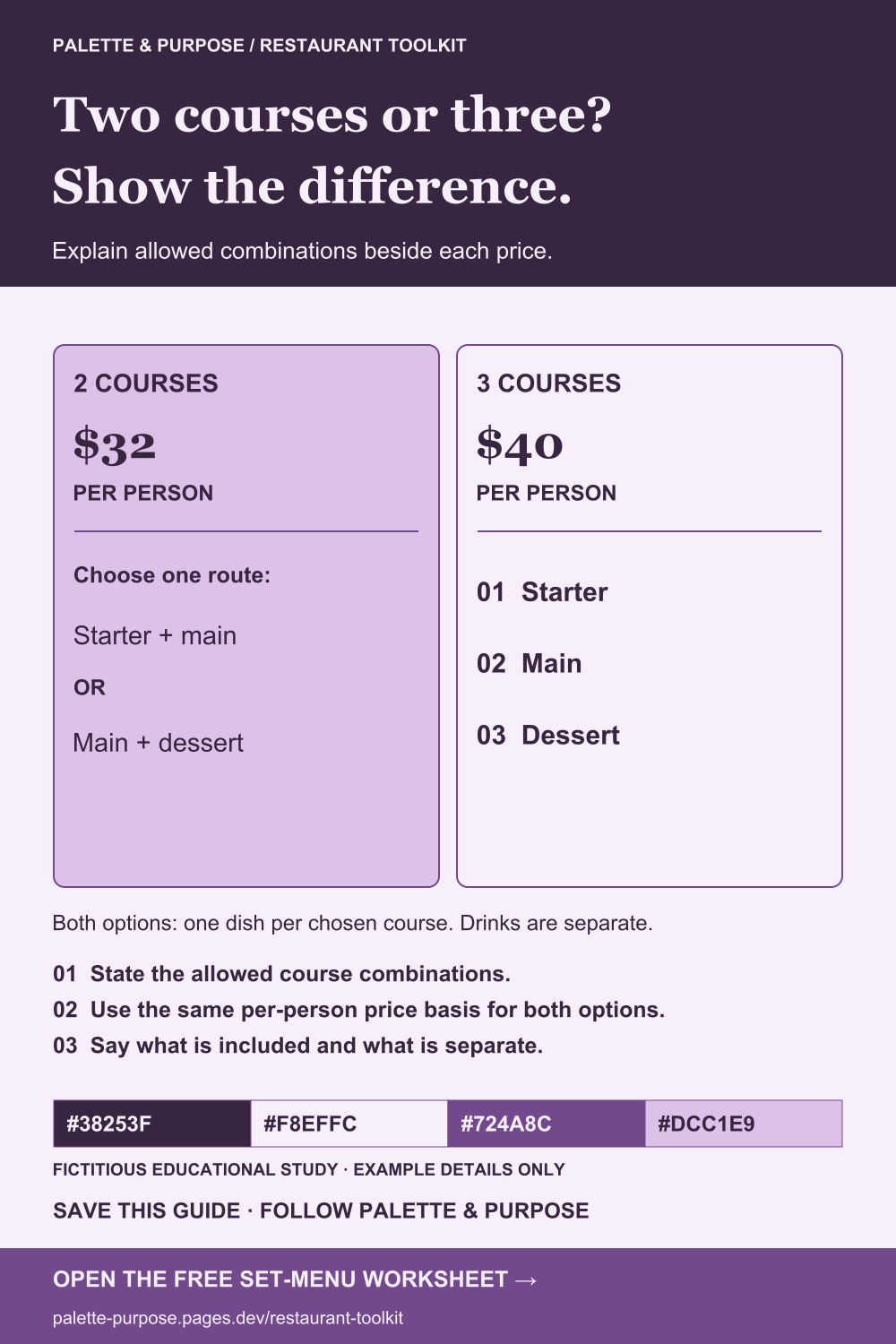
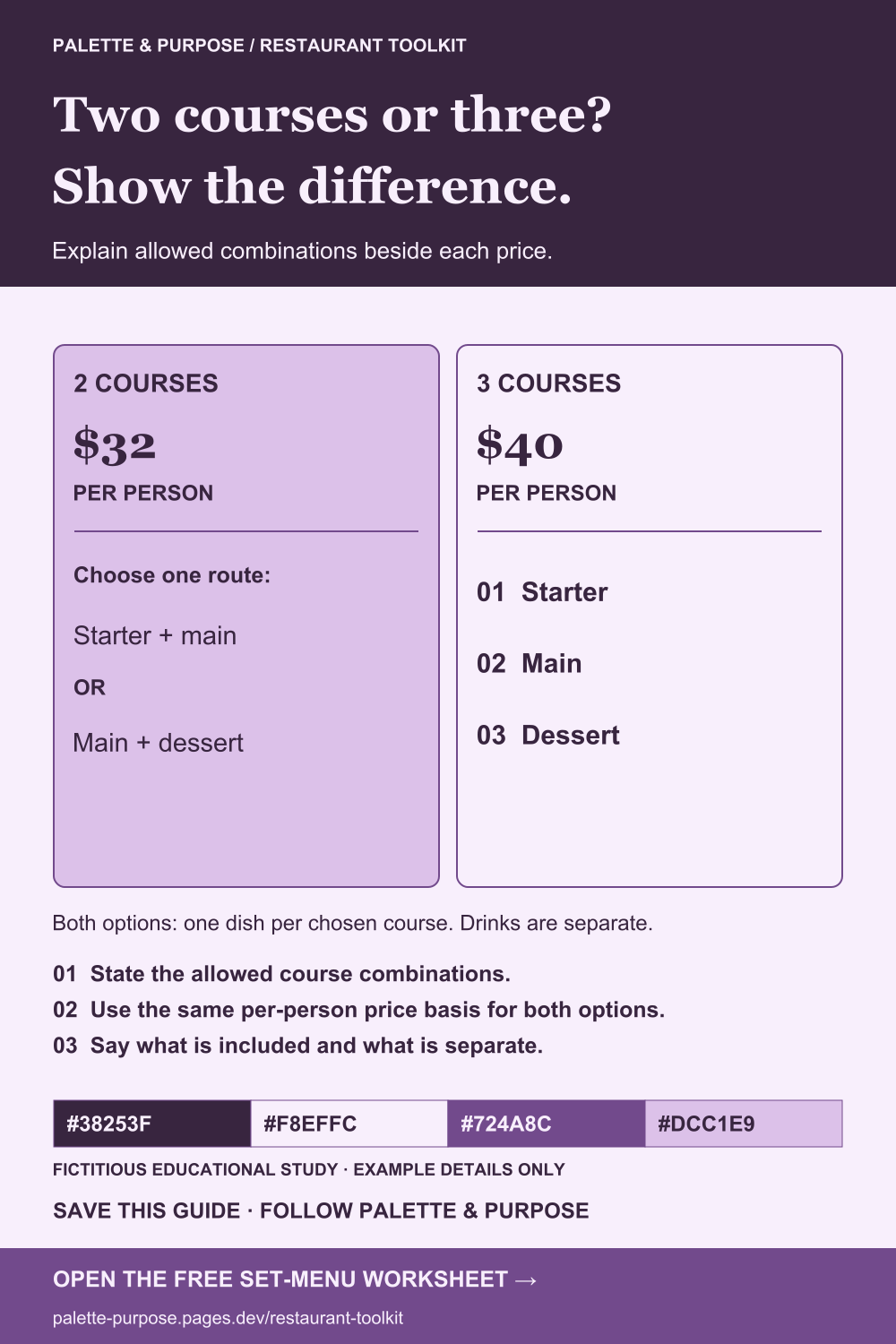
A price alone does not explain a set menu. State the course count, permitted combinations and whether the price is per person or for a group. Put shared conditions beside the comparison so readers can understand the offer without reconstructing it. Replace all sample amounts and inclusions with confirmed venue details.
Download the set-menu comparison worksheet (.txt)
Before you use it
- List the permitted combination for each course count.
- Keep the price basis consistent, or explicitly explain any difference.
- State the shared inclusions and items charged separately.
- Confirm availability, restrictions and additions before publication.
Palette & Purpose · restaurant-toolkit#set-menu · Illustrative guidance: adapt to your venue’s actual process.
Example note. The $32 and $40 amounts, combinations and separate-drinks note are fictitious layout examples, not pricing advice or a live offer.
Back to the ten tools ↑View the visual example
Keep portion meaning beside the dish name
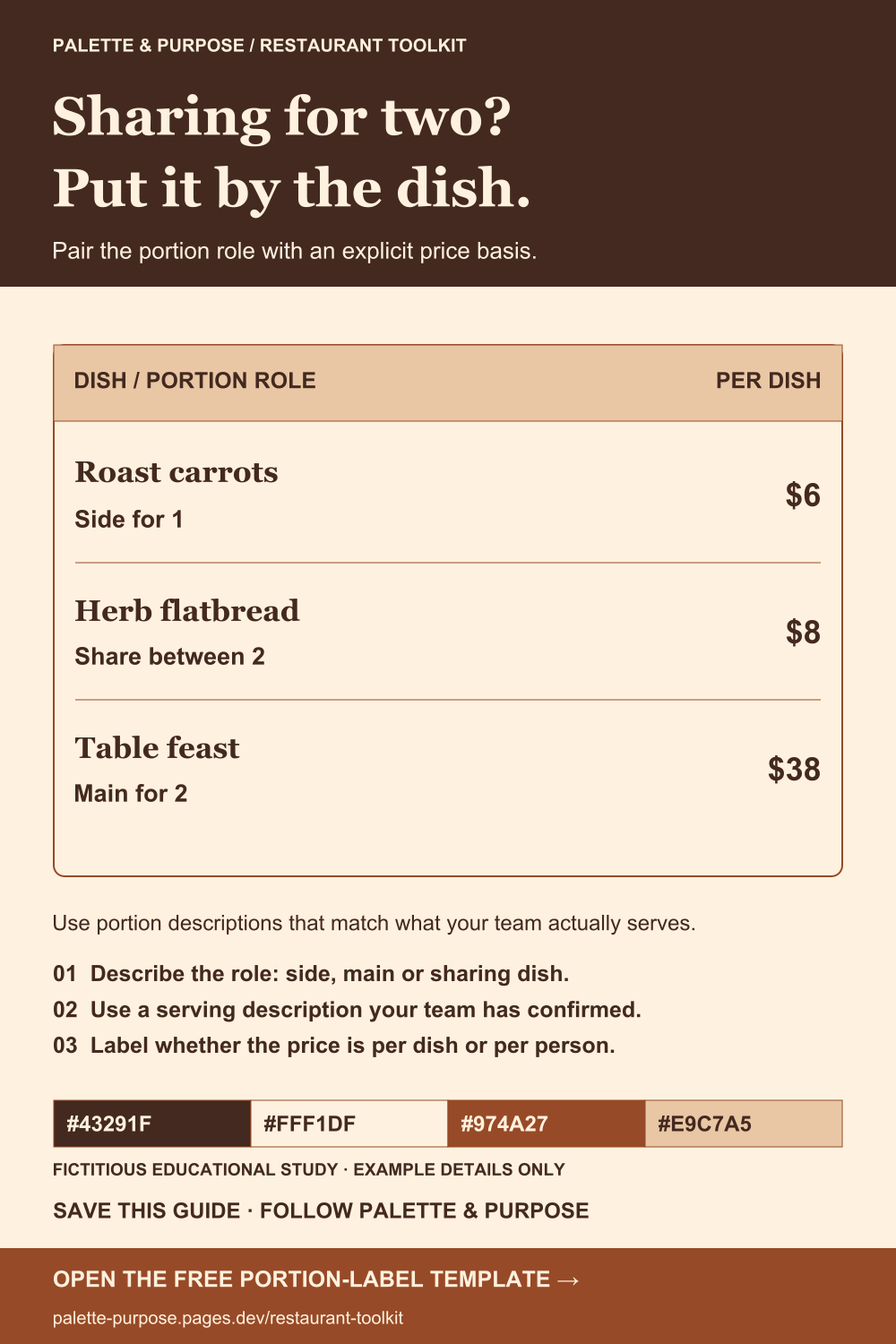
Small, sharing and for two can mean different things across menus. Use a short portion description that matches what the team actually serves, and distinguish a side from a main or a dish intended to be shared. Keep the price basis explicit. The visual uses per-dish prices; adapt the sample labels instead of treating its serving counts as a standard.
Download the portion-label copy template (.txt)
Edits stay in this page and are not sent to us. The download contains the original template.
Before you use it
- Confirm the actual serving description with the team responsible for the dish.
- State the role where useful: side, main or sharing item.
- Keep the portion description beside its dish.
- Show whether the price is per dish, per person or another clearly explained basis.
Palette & Purpose · restaurant-toolkit#sharing-portions · Illustrative guidance: adapt to your venue’s actual process.
Example note. Dishes, portions and amounts are invented. Portion wording must describe the venue’s real serving, not the example.
Back to the ten tools ↑View the visual example
Write a pickup handoff that answers the practical questions
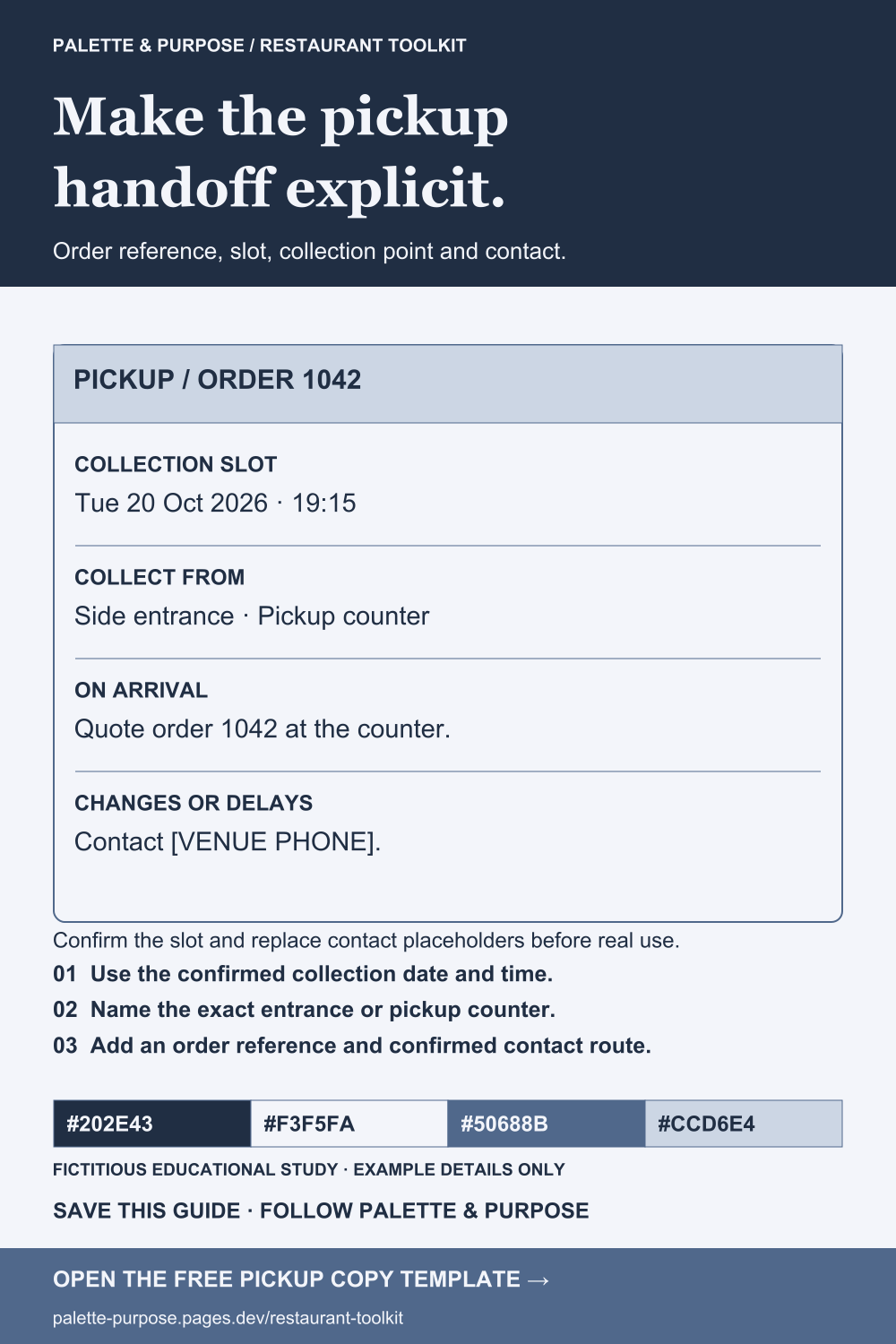
A pickup card should explain which order to collect, when to arrive, where to go and what to do if plans change. Use the confirmed full date, time and collection point. The visual uses an invented full date and slot; the template supplies fields for your actual confirmation and a monitored contact route.
Download the pickup confirmation copy template (.txt)
Edits stay in this page and are not sent to us. The download contains the original template.
Before you use it
- Use the full confirmed collection date and time; add a time zone if needed.
- Name the exact entrance, desk or pickup counter.
- Give the reference the team will use to identify the order.
- Replace the contact placeholder with a confirmed phone or other monitored route.
Palette & Purpose · restaurant-toolkit#pickup-details · Illustrative guidance: adapt to your venue’s actual process.
Example note. Order 1042, the date and time, and the collection point are fictitious. Replace [VENUE PHONE] with a confirmed contact before real use.
Back to the ten tools ↑View the visual example
![Slate-blue pickup card for fictional order 1042: collection slot Tue 20 Oct 2026 at 19:15; side entrance pickup counter; quote order 1042; changes or delays contact [VENUE PHONE]. A note asks users to confirm the slot and replace contact placeholders. Fictitious educational example.](/assets/restaurant-toolkit/pickup-details.png)
When an evening is full, give guests a useful next step
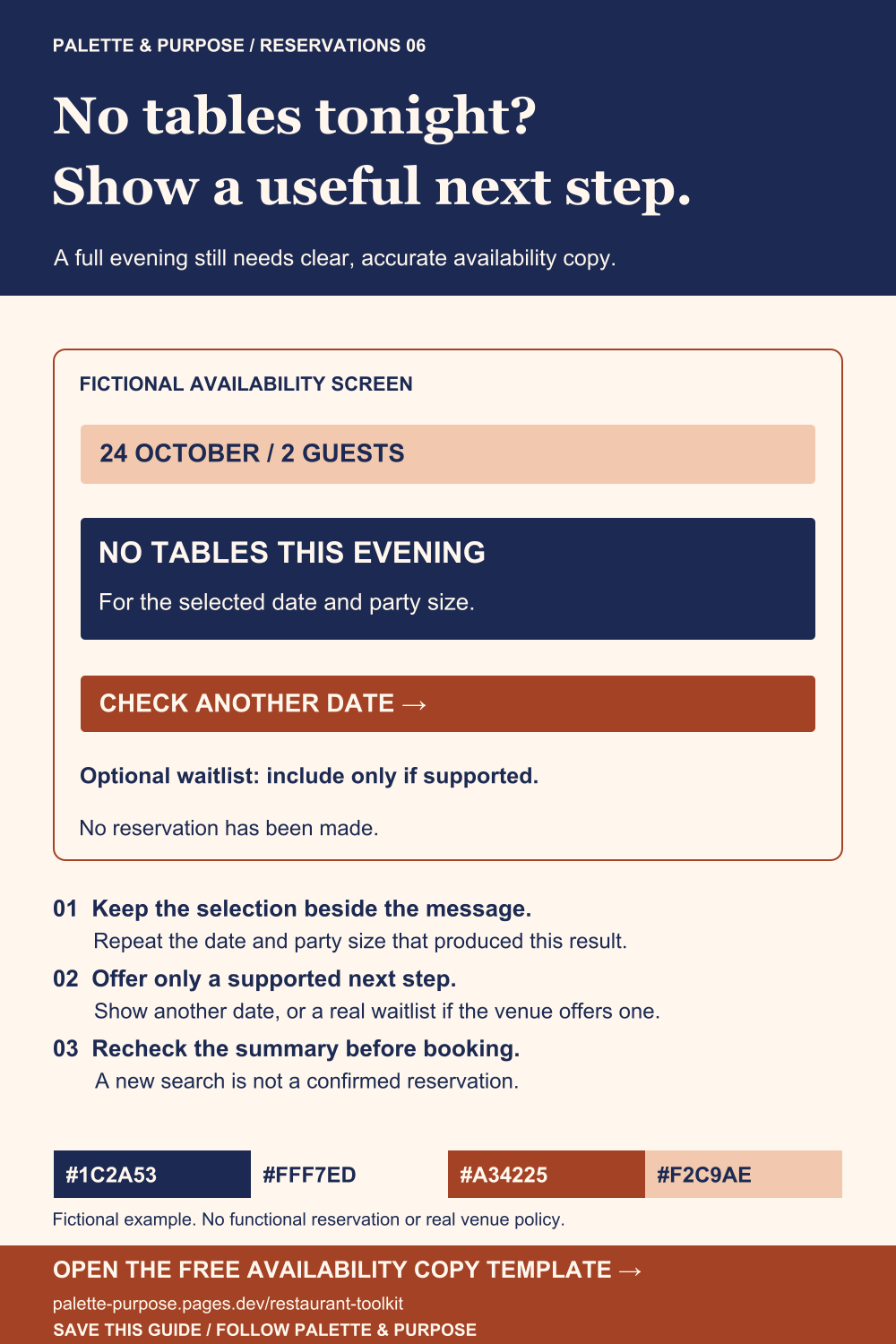
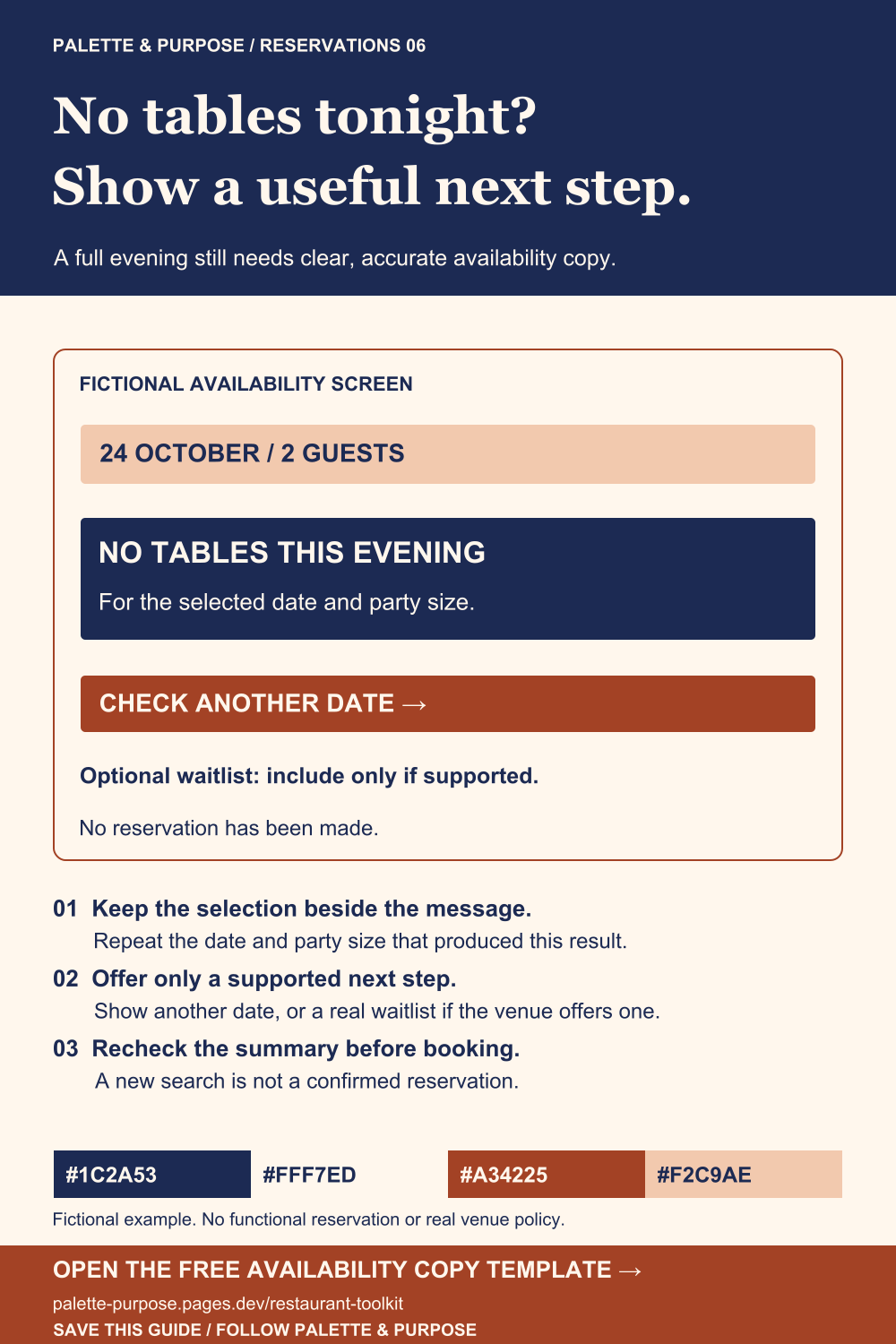
An unavailable evening should explain what is unavailable and offer a next step your venue actually supports. This is editable copy guidance, not a live booking system.
Copy the availability message template
Edits stay in this page and are not sent to us. The download contains the original template.
Before you use it
- Keep the selected date and party size beside the no-availability message.
- Offer another date or another supported route without implying a new booking.
- Include a waitlist only if the venue actually runs one, and explain its real process.
- Recheck date, time and party size before the guest completes a later booking.
Palette & Purpose · restaurant-toolkit#no-tables · Illustrative guidance: adapt to your venue’s actual process.
Example note. Fictional interface. An unavailable evening is not an actual offer, and optional waitlist copy must be removed if the venue does not support it.
Back to the ten tools ↑View the visual example
Ask useful questions in a private dining enquiry
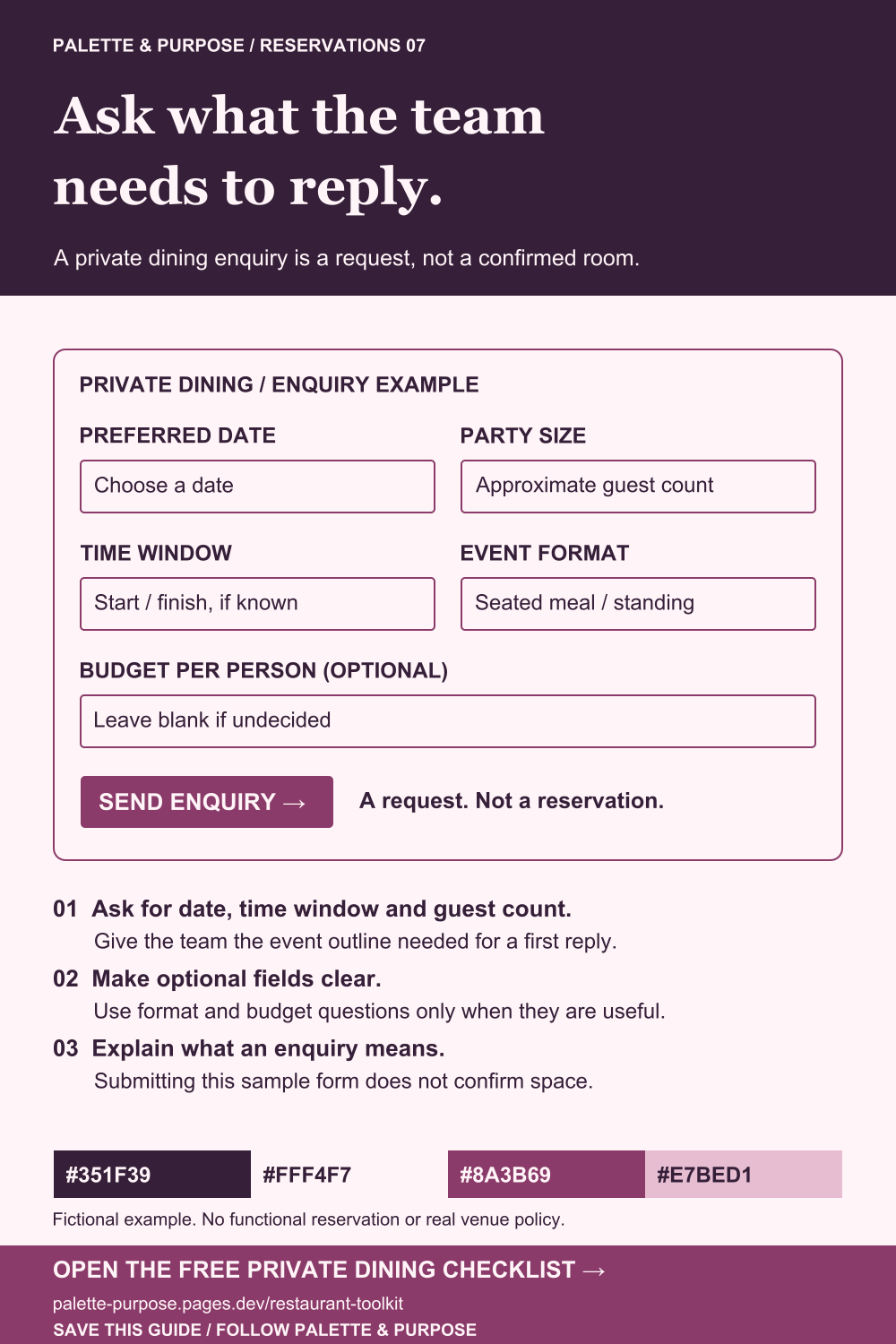
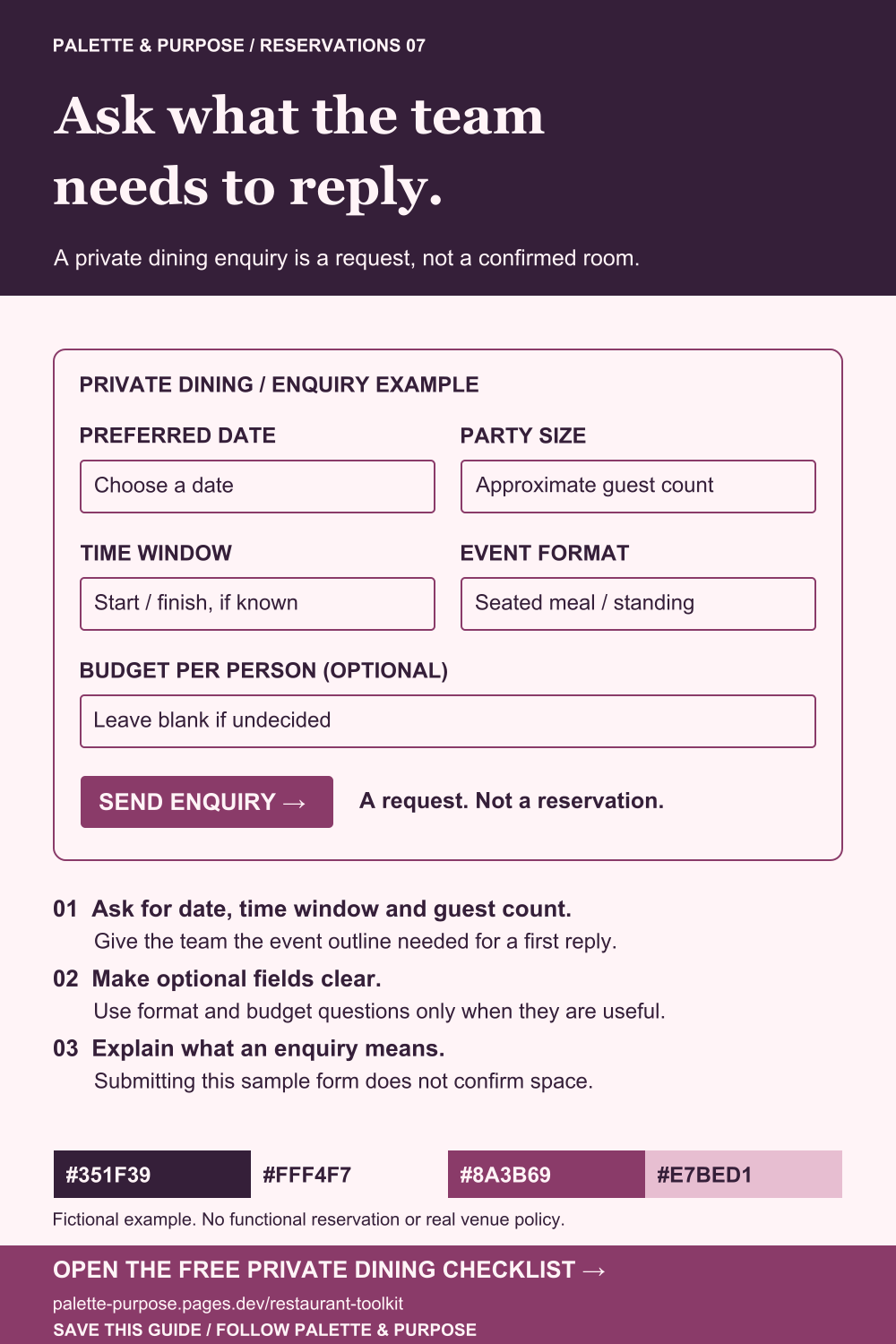
Collect the event details needed for an informed first reply. Keep this enquiry distinct from a confirmed room or restaurant reservation. The fields below are an editable starting point.
Copy the private dining enquiry checklist
Edits stay in this page and are not sent to us. The download contains the original template.
Before you use it
- Ask for a preferred date and useful time window.
- Ask for an approximate guest count and the event format.
- Label any budget field optional unless your actual process requires it.
- Explain that submitting the enquiry does not confirm space.
- Replace sample fields and the reply route with the venue’s real process.
Palette & Purpose · restaurant-toolkit#private-dining · Illustrative guidance: adapt to your venue’s actual process.
Example note. Fictional, non-functional form diagram. Sample event details and the budget field are illustrative; adapt them to the actual venue. No real guest information is included.
Back to the ten tools ↑View the visual example
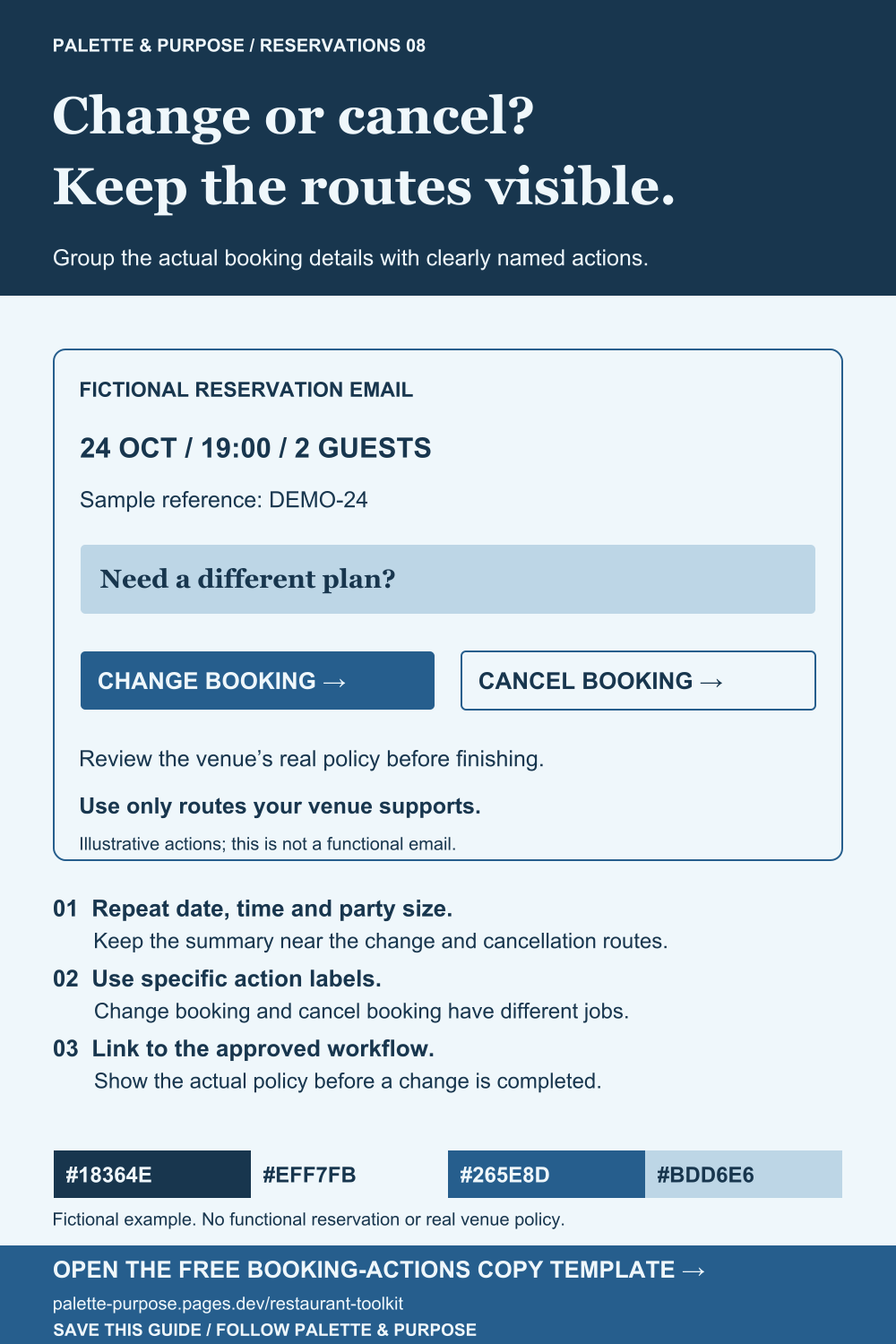
Keep change and cancellation routes beside the booking details
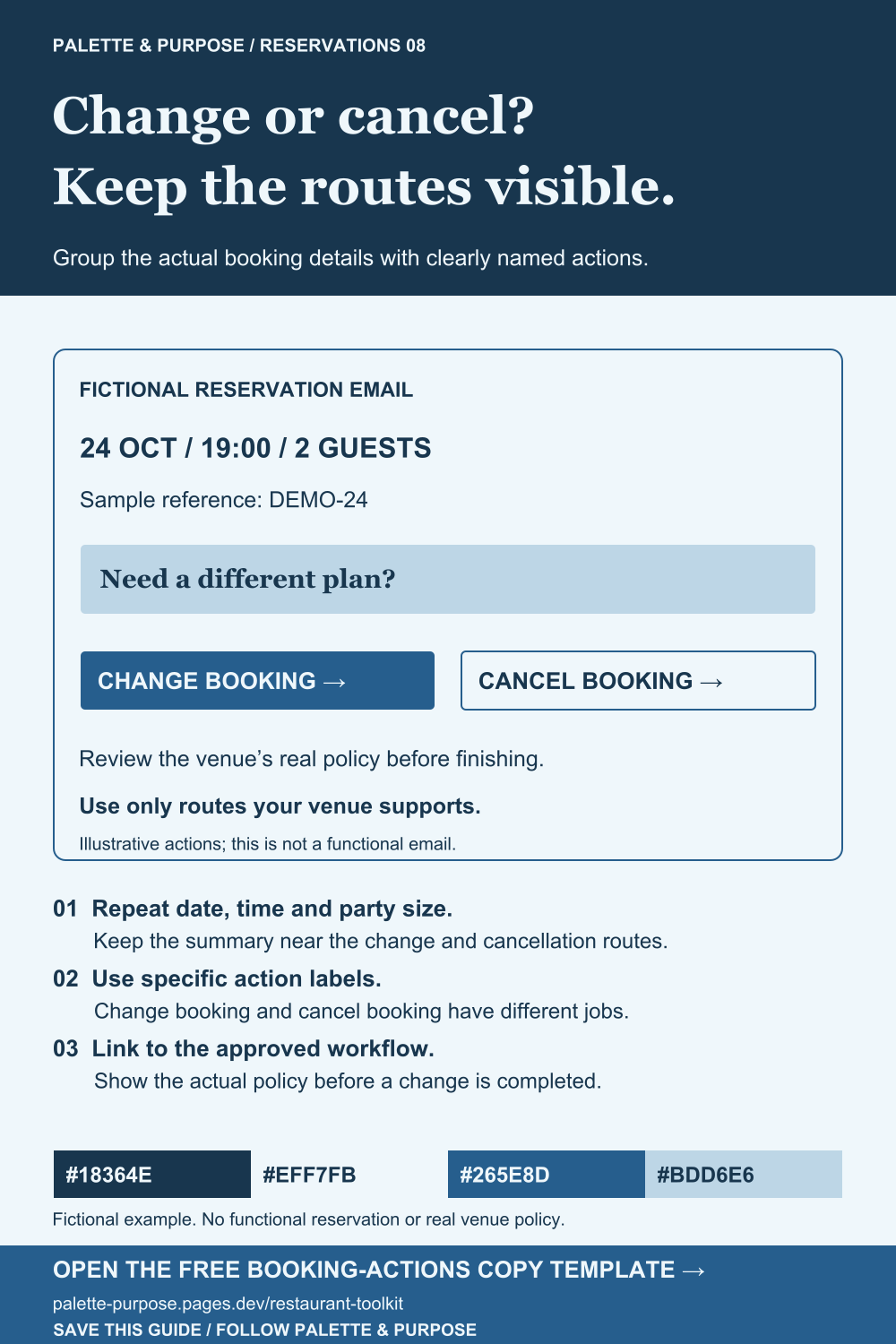
A reservation email can group the actual booking summary with clearly named change and cancellation routes. Link only to actions your venue supports; do not invent policies or imply that a click has completed a change.
Copy the change-and-cancel email template
Edits stay in this page and are not sent to us. The download contains the original template.
Before you use it
- Repeat the date, time and party size before the action links.
- Name change and cancel actions clearly, rather than using a generic click-here label.
- Link to the venue’s approved workflow and show the real policy before completion.
- If self-service is unavailable, give the correct booking contact route.
Palette & Purpose · restaurant-toolkit#change-booking · Illustrative guidance: adapt to your venue’s actual process.
Example note. Fictional email layout with non-functional actions. Sample details are illustrative. A link label does not itself change or cancel a reservation.
Back to the ten tools ↑View the visual example
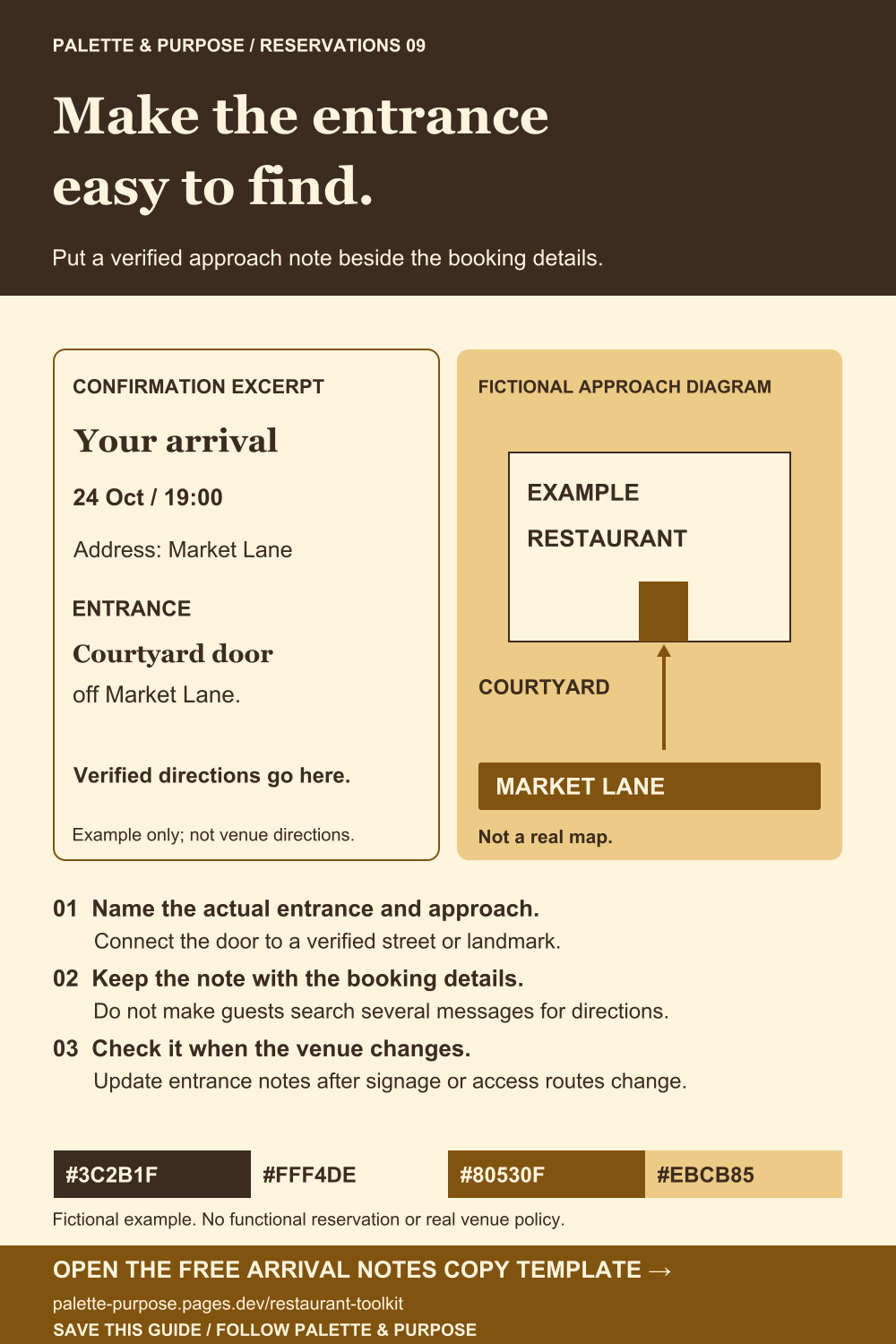
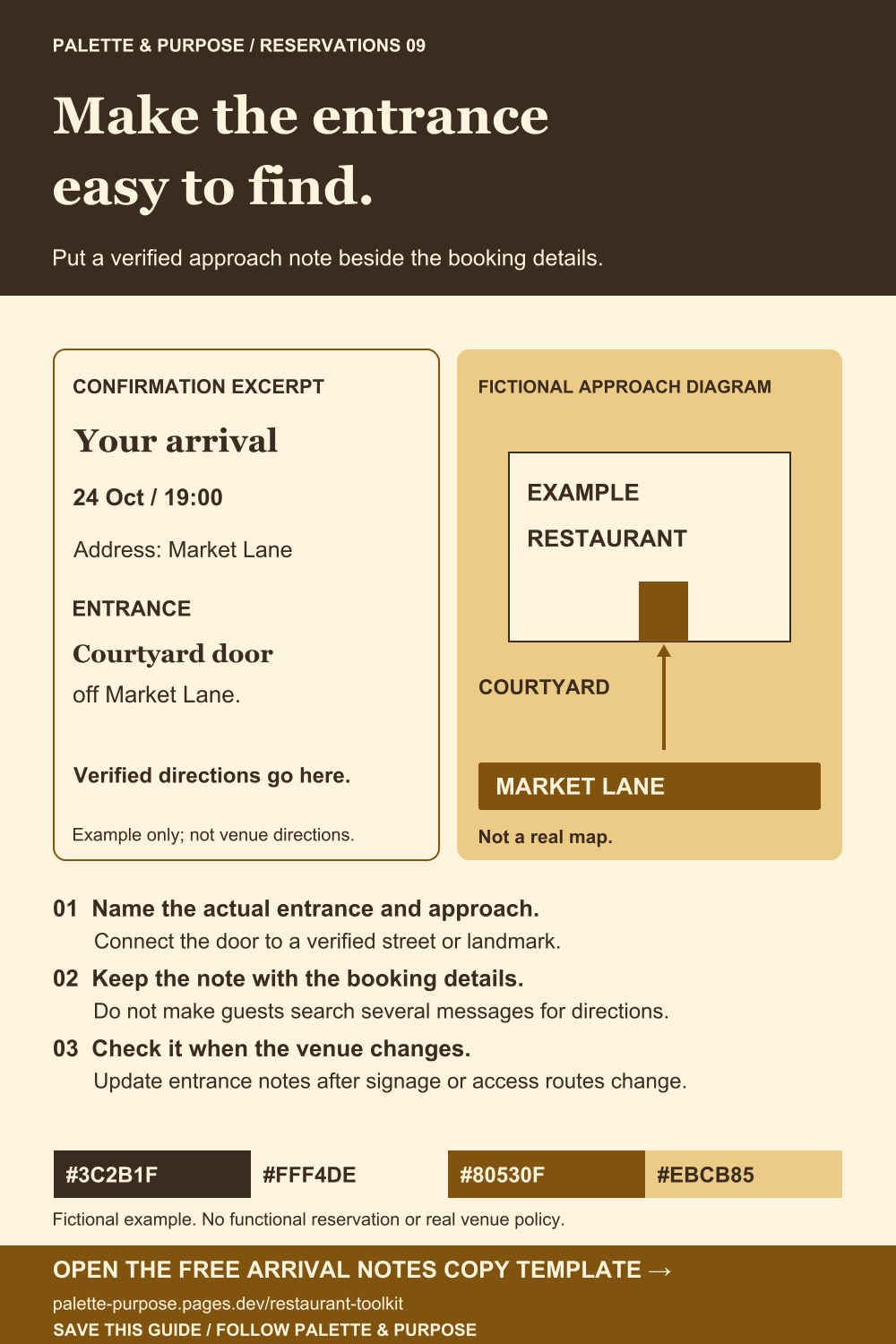
Add practical entrance notes to the confirmation
An address may leave the entrance unclear. Add a short, accurate approach note where guests can find it with their reservation details. Use a diagram only if it reflects the real location.
Copy the arrival-notes template
Edits stay in this page and are not sent to us. The download contains the original template.
Before you use it
- Name the correct entrance and the street or approach it connects to.
- Keep the arrival note near the booking date and time.
- Use a simple diagram or landmark only after checking it on site.
- Review the note when entrances, signage or the venue layout change.
Palette & Purpose · restaurant-toolkit#arrival-notes · Illustrative guidance: adapt to your venue’s actual process.
Example note. Fictional courtyard entrance and Market Lane diagram. Replace all directions with verified venue information; this example is not a real map or a route service.
Back to the ten tools ↑View the visual example
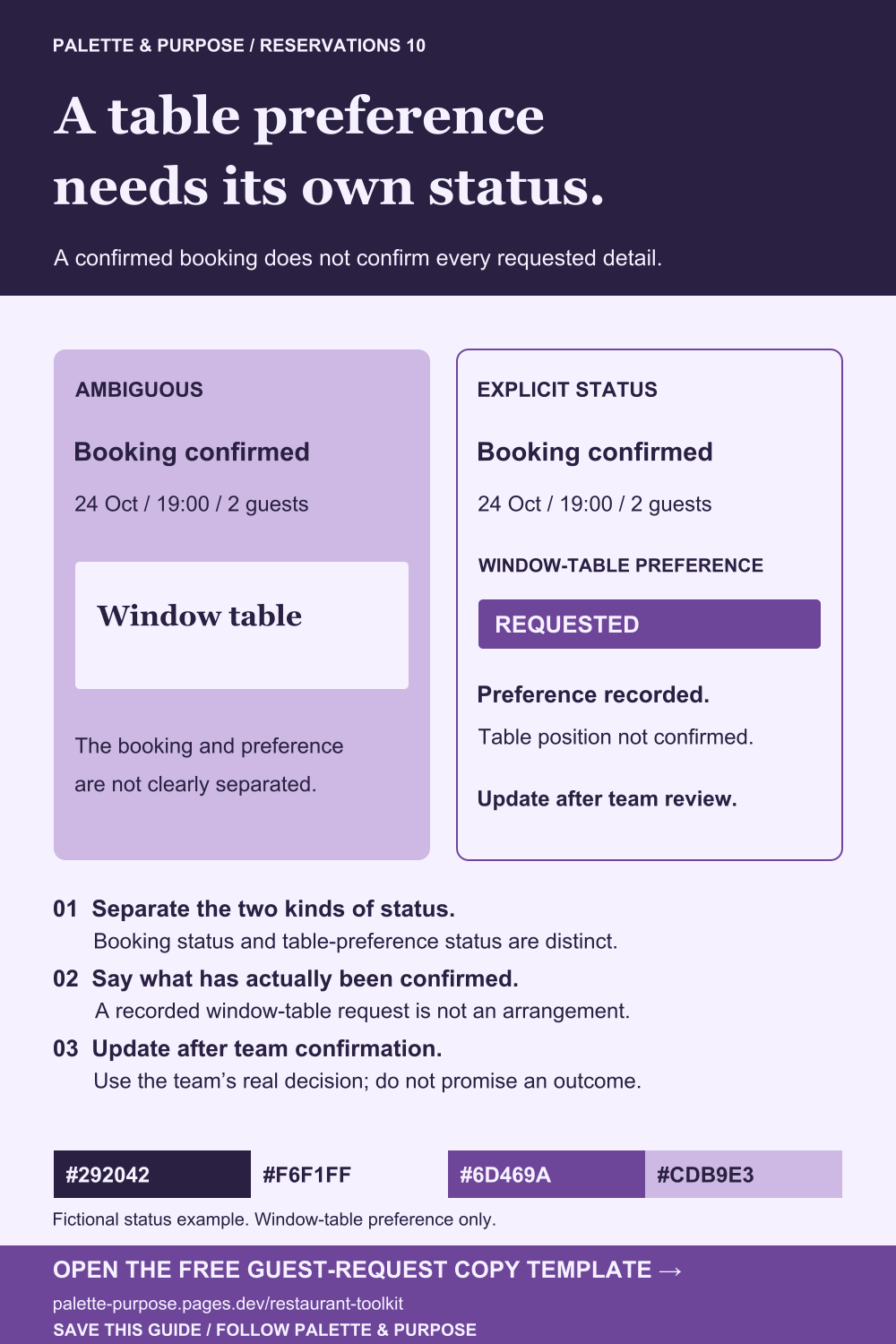
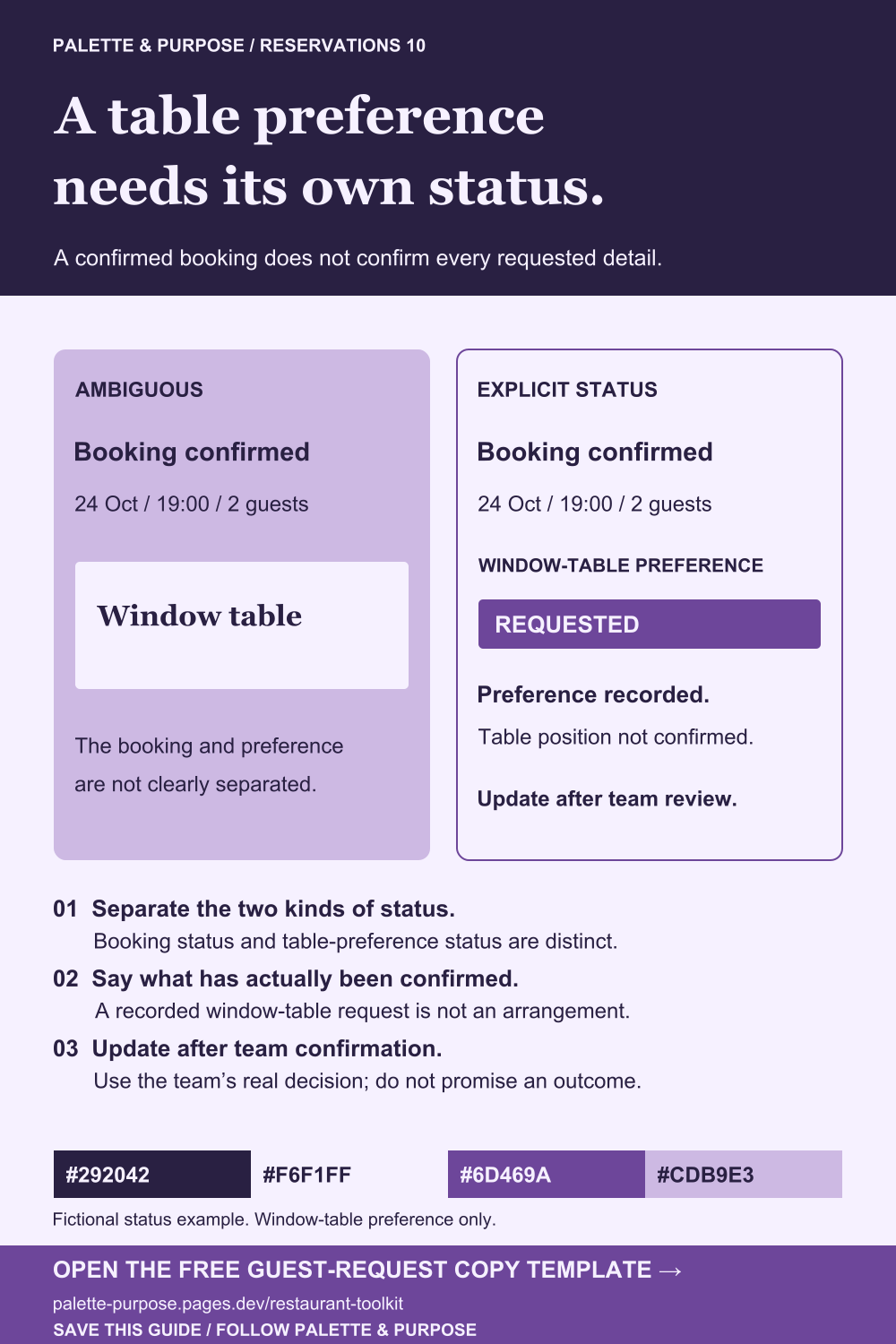
Separate a table preference from the confirmed booking
A confirmed reservation does not automatically confirm a requested window table. Show the booking status and the preference status separately, using the team’s actual decision.
Copy the table-preference status template
Edits stay in this page and are not sent to us. The download contains the original template.
Before you use it
- Separate the reservation status from the window-table preference.
- Say whether the preference was merely recorded or specifically confirmed.
- Use a clear pending message while the team has not confirmed the arrangement.
- Update the status only after the team’s actual confirmation.
Palette & Purpose · restaurant-toolkit#guest-requests · Illustrative guidance: adapt to your venue’s actual process.
Example note. Fictional booking-status example about a window-table preference. Replace each status with the team’s actual decision.
Back to the ten tools ↑View the visual example